View Transitions: A basic implementation
Instructions on how to implement simple View Transitions, including a couple of animated GIFs to show the results.
Background
I hadn't written an article for quite some time, so decided to write about the View Transitions feature that has been added (behind a feature flag) to Google Chrome. I implemented View Transitions on this site about 6 months ago, and I couldn't remember why I hadn't already written about it. Then, during my research, I remembered Dave Rupert's blog post "Getting started with View Transitions" and I realised it covered everything I wanted to say, and he'd done a much better job of explaining it than I could have.
However, it's such a cool little feature, and so easy to implement, that I decided to write about it anyway. And let's be honest, the web can't have too many cool animated GIFs, can it?
Browser support
Currently only Google Chrome (v115+) supports multipage View Transitions, and even then it's behind a flag. So, if you want to test your implementation (or see how it looks on this blog), then copy chrome://flags/#view-transition-on-navigation to the clipboard, paste it into the URL bar, then select 'Enabled' alongside the 'viewTransition API for navigations' option.
Now that you've enabled the feature in Chrome, you can test the feature by navigating between pages on this site, or better still, try the following blogs which have both implemented View Transitions:
Transition between pages
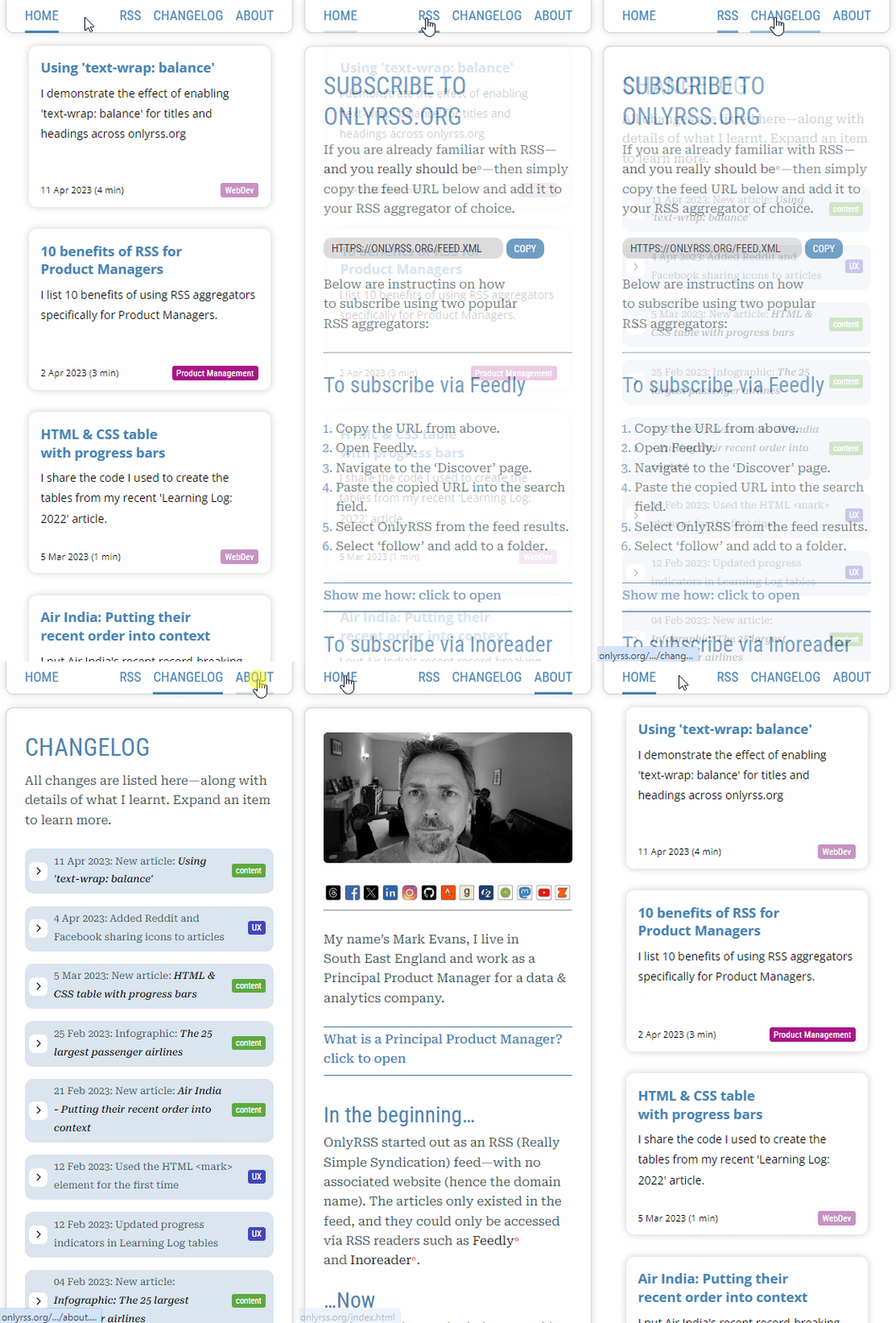
With the Chrome feature flag enabled, to achieve a fade as you move between pages (fig. 1), you need to add the following code to the <head> of each page:
<meta name="view-transition" content="same-origin">The result is a subtle fade as you move between pages (the animation shown below has been slowed to 25% of normal speed). On mobile—especially when combined with a Progressive Web App (PWA)—the feeling you get is very “native-app” like.
Transition between page elements
To achieve a transition between page elements, for example, a blog post title on your homepage, and the title on the blog post itself (fig. 2), we need to create a link between the two elements, to do this, we use the 'view-transition-name' style.
For example, on my blog's homepage, for the most recent blog post i.e. post23, I have the following code:
<card-body>
  <h2 style="view-transition-name: post23">Using 'text-wrap: balance'</h2>
  …
</card-body>
Then, on the corresponding blog post page, I have the following:
<header>
  <h1 style="view-transition-name: post23">Using 'text-wrap: balance'</h1>
  …
</header>
This is all the information the View Transitions API requires. The result is a smooth transition between the two elements (and locations), as shown in the animation below (the animation shown below has been slowed to 25% of normal speed).

Summary
There's a lot more to View Transitions than I've covered here, but I wanted to keep this article to just the basics. If you want to learn more, then I recommend you read Dave Rupert's article "Getting started with View Transitions".